Showing posts with label software. Show all posts

Friday, March 05, 2010

Jumplist for Calibre: The eBook Management Software - (The Modern Reader Series - A guide to getting more out of Calibre – Issue #1)

I am a reader. You are a reader. Everyone is a reader and Calibre is open source! Aren’t we living in a golden age?

Calibre is a great application and it belongs to the community, but this also means that the community is in return responsible for calibre and its development. I was thoroughly impressed by it the first time I used it and am still surprised by its modular flexibility and potential. So I decided to participate and try to make the ‘calibre experience’ more smarter as that seems to be the mantra of this age.  So I have decided to start with a simple yet powerful tip for Calibre Users in the form of utilizing Win7’s Jump list feature. Here is does….

Aim : Facilitate launching of calibre and related tools with different start parameters.

Side effects : Multiple libraries, Integration in Windows 7  using Jumplist feature, Easy of launching and grouping calibre related links

Requirements: Calibre eBook Management Software, Windows 7, Hedgehog’s JumplistLauncher (Download 476.6 KB), (Administrator Privileges may be required based on the location of the installation of the launcher)

Limitations: Only runs on Windows 7

Setting Up Icons:

  1. Open Explorer with Ctrl+Shift to start it in Admin mode and Navigate to calibre’s installation directory (usually C:\Program Files\Calibre2)
  2. Create a new folder and Extract JumplistLauncher e.g. C:\Program Files\Calibre2\Jumplist   (power user tip: can be anywhere, can have multiple installs)
  3. Right Click on JumplistLauncher.exe and select “Create Shortcut”. Select yes when asked to place on desktop. You can optionally cut-paste the shortcut back in the jumplist folder.
  4. Rename the shortcut to “Calibre E-Book Management”. Optionally change it’s Icon to use calibre’s. See tutorial to change icon here
  5. Right click the shortcut and select “Pin to Start Menu”
  6. Right click the shortcut and select “Pin to Taskbar” (drag the icon to your preferred location)
  7. The Icons should appear on you task bar as well as in start menu. Congratulations you are half done.

Setting up Jumplist items:

  1. Press Ctrl+Shift and Click on the new icon to start the JumplistLauncher interface in admin mode. (Don’t worry if yours is empty, We are going to create these links.)Launcher
  2. Add Items to the jump list
    1. Click the ‘Add File’ button to create a new item.
    2. Browse to calibre’s executable (C:\Program Files\Calibre2\calibre.exe) and press ‘Open’
    3. In the ‘Selected Entry’ field group you can specify the name of you choice. for e.g ‘Calibre’
    4. In the ‘Parameters’ field add command line configuration parameters. 
      1. To launch calibre with another library location then default enter “--with-library <path>” where <path> is the path to that library e.g. E:\Books\Library2 . See the official support guide for more parameters.
      2. To add a URL (for e.g. a friend’s content server) use a browser’s exe for the file and the URL for the parameter. For e.g. I used Firefox with is normally located at C:\Program Files\Mozilla Firefox\firefox.exe
      3. Add Calibre-server.exe to easily start your content server. see available params
      4. If you have a skydrive, network backup etc, you can specify it’s path for the library
      5. If you use the various modular executable in calibre’s directory, create batch files for common tasks and add them by creating a shortcut with the Run minimised option
    5. Optionally change the icon of the jump list item by pressing the icon button.
  3. Use the ‘Add Group’ button to great sections in the list. To edit a group’s name click on it in the list and it changes to a editable textbox.
  4. Selecting one of the checkboxes in the list makes it the default launch operation when clicking on the icons we added to the task bad and start menu. If none is selected then this configuration window opens up.
  5. Press the ‘Update Jumplist’ button to same you options and update the jump list without restarting the launcher.
  6. Exit the configuration  window and you are done!

StartMenu Jumplist Taskbar Jumplist

I hope this is a very helpful tutorial and will go a long way to utilizing calibre to its full potential. I will be create more posts and tutorials in the future so please send me feedback on the calibre’s mobileread forum or here.

Tuesday, August 04, 2009

Windows 7, Visual Studio 2008 and Sql Server 2005/2008 are made for each other…. well almost.

It is like walking into a field of sunflowers with northern lights above and a bright and happy sun shining warmly on your face. That is what Windows 7 feels like. I got the Windows 7 iso(2.3Gb) floating around on the net and decided to try the 30 days trial ;) on my development laptop which is not even Vista certified!

Note: This is going to be a long haul. Feel free to skip and do what ever boring stuff you do normally.

…Setup Windows 7 without a DVD

Installing is a breeze with a pen drive so do the following and everyone around you will think you are a magician.

C:\>G:\Boot\BOOTSECT /NT60 H: where G is the mounted ISO(using UltraIso or similar) and H is you pen drive. After that copy all the content from the Win7 image to the pen drive as well. You are all set! Reboot and choose to boot from the pen drive. 10 minutes later you will feel the sun in your face :P

…Installing applications

The installation was swift with 3 restarts and all hardware detected automatically. One quick windows later I was up to date. I looked like I was on to a fabulous start. The performance was looking great and it was very stable. I then moved to the real deal stuff and the tedious job of downloading and installing everything. Firefox, Chrome Faststone, 7z, uTorrent, AVG Free, Atomic clock, Google Desktop, Windows live components(which is what I am writing in right now), CutePDF, Skype, Gtalk, Synaptic Touchpad utility and you know all the odds and ends I could remember. My previous XP was loaded and server me well for 1.2 years without fail. I was hoping to stay on the same steady road but with all the jazz of the world :D

…Importing settings and customisations

None of the above mentioned stuff gave any warning or error and installed blazing fast thanks to the Windows 7 installation routine revamping. However then came the crazy task of importing setting and customizations that accumulate with time on one’s PC. I did uTorrent, Media Library(which was going to prove useless against the supreme Windows 7 Libraries function), Atomic Clock, Google Desktop gadgets and Index files, Skype History etc. They all were marvellous and did I say no errors or compatibility issues yet?

…Using Firefox profile from Windows XP

Well the sweet part was over after that and came the crazy stuff. I had to import my Firefox profile, you know with the extensions, history, sessions, passwords and all that, which is usually very easy to do but I hit a mental block for some reason and it would work for the longest time. Firefox profile is something that I would start using Win98 to get it working! What is a guy without his internet history, bookmarks and passwords?

Anyway there were two problems. First, I was putting it in the wrong location. %AppData% in is AppData/Roaming not in AppData/Local Dugh! and Second to make it work you have to use “Firefox.exe –profilemanager” and create a new profile. After that close Firefox and replace all files in the new profile from you precious one and lo and behold you are back!

…Installing SQL Server and Visual Studio

Well I have to say it, this was the toughest. Mainly because there is so little information about Windows 7 (not the RC) on the net. As soon as you start the setup you will be bombarded with a few ‘known compatibility’ messages which were ever so frequent in Vista. If you install anyway you wont get anywhere as the SQL native client wont install and thus the Database service wont install. The simple thing is to download the SP3 streamlined setup of SQL Server 2005 or 2008 from Microsoft and if you cant then extract the SP2 or earlier setup with 7z and manually run sqlncli.exe for the native client. After that It should install smoothly. Just remembered, before all this, remember to setup IIS if you are going to do SQL CLR Debugging and in general Managed debugging using IIS and Visual studio 2008. Follow is very neat guild.

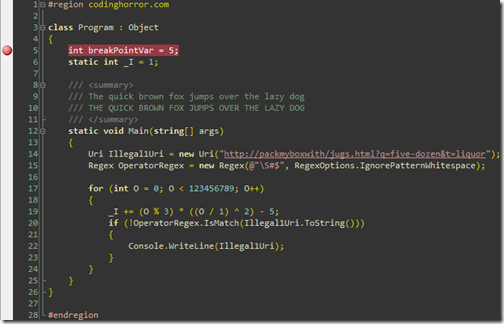
Visual studio and ASP.NET MVC install without hiccups. Remember to install the newest service pack though. It is also very easy to import your previous visual studio settings file and keep you visual studio theme too. And most important don’t forget to install Monaco font! :)
…IIS 7.5, SQL Server, Debugging Quirks

I ran into a couple of problems that you might too. I had to dig around the net for a loooong time and do a lot of trial and error to fix the solutions.

1. Create a Application under default website and run into a wierd problem. The default page doesnt load. For Eg. http/localhost/MyApp/ will give a 404 where as http/localhost/MyApp/Default.aspx will open file. After a lot of trial and error I found out that creating a Virtual Folder and then right-clicking to convert to application solved the issue.

2. Server Error in '/' Application.

Cannot open database "<Database Name>" requested by the login. The login failed. Login failed for user 'IIS APPPOOL\DefaultAppPool'.
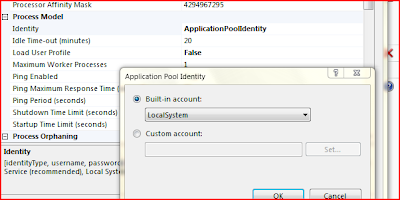
There are other, some will say better, ways to fix this problem but the simplest and fastest to get it out of way is to change the. Go to IIS Manager>Server>Applications Pools> DefaultAppPool>Right-Click>Advanced Settings>Change Identity to LocalSystem. This will allow debugging.

3. Cant find the right process in ‘Attack to process…’ Just check ‘Show Processes in all Sessions’ and select w3wp.exe. If you still cant find it then open your browser and open some page on one of the local applications or virtual directory hosted apps. IIS service is efficient so it terminates fairly quickly on idle. Reopen the Attach to process and you should find it there.

4. Debugger terminates debugging after a few seconds into break points etc. This one is out from the help pages in case you were too lazy to click the help button. This is another one of the performance enhancements in IIS. Click here for the fix. :)

…Development tools

I use a whole bunch of tools around my Visual Studio and wont list them all. Here are few of the prominent ones. I installed Web Deployment projects addin, TortoiseSVN, Codesmith, netITers, Code Rush, Refactor pro, Red Gate SQL Toolbelt, ANTS Profiler, SQL Profiler, Sql Server Business Studio, MS Charts.. etc They all worked fine without any error or compatibility issues.

…Library and Home group

It is a revolution! These two features alone are enough to tell you something good is here. I was able arrange everything in my Laptop and my Gaming PC in less then 30 minutes. Which I was unable to do for the past years!! This will be awesome to the extreme when they release some kind go installed for earlier OS and I able to use it with the new NAS I am planning to buy for a 4TB+ storage.

However there was a problem that will possibly hit half the users. I spent 2 hours trying to connect both the PCs together in a home group. The process is very simple, you enable home group and are shown the password. Just click join on the ot

her systems and enter the password. All done… Not. They say a rotten apple can spoil all the others in the basket. That rotten apple is the team lead for the home group feature. They don’t tell anywhere that the time on both the machines have to be accurately matched! At the very least when you enter the password it should report and ‘Dude correct the time’ instead of a lame ’ Wrong Password’ message. Just enable internet time sync or do once to fix it.

...Windows Media Center

Probably the only thing keeping me sane. I love windows media center. I only run vista on my PC just to watch movies. internet radio, Music and what not. Especially with the Logitech s510 Media Remote makes is home theater heaven. The one in Win7 is quite imporved and fast like everything else. I detected my Pinnacle i110 right off the bat and download the TV Guide in a jiffy. After that I was surfin' the tube.

…Conclusion

I have been using Windows 7 for 3 days will all the above and a lot more. Win7 increases productivity a lot as well by making everyday things easier. I tried a lot of other stuff like ReadyBoost with 8gb pen drive, BitLocker and the revamped accessories like Programmable calculator and MS paint. Some benchmarks actually are much better then XP like in graphic intensive or multitasking software. The XP emulator is also apparently to die for, I was not able to try it since it requires a large amount of ram, disk space and virtualization capable CPUs. The upcoming Visual Studio 2010 and .net 4 are also being tailored for Windows 7.

It is quite possible I am in love…. ….again. Ciao.

Monday, March 12, 2007

(Vista & XP)Share saved games between multiple OS

Introduction

With the release of vista I was excited and noticed that the era of multiple operating systems had returned। Just as when XP was released Computer enthusiasts had both 98 and XP installed. Similarly since the launch of Vista a lot of people now have vista as well as XP installed.

Problem

With multiple OSes we definitely have problems like installing software twice. But a lot of Software and applications can be run from the same location. For example games. Say u were playing NFS MW in XP. You install vista and want to play MW, You have two options, ONE, do the tiresome job of either copying the saved games from the XP drive to the vista drive(and then back if u want to play from XP again) or TWO, restart the system to XP. It is very inconvenient.

Solution

The best solution i came across is to create virtual folders(aka Hard links, Special Folders. not Virtual folders feature in Vista). What we want to do is have the actual save game files in one location, like XP, and create a virtual folder linking it to them from vista.

Assumptions
  1. XP installed in I:\Windows
  2. Vista installed in C:\Windows
  3. Games installed in D:\ (eg "e:\NFS Most wanted") (can be anywhere)
  4. MW creates saves in XP "I:\Documents and Settings\%username%\my documents\NFS Most Wanted"
  5. Req. virtual folder in vista at(MW creates saves here in vista) "C:\users\%username%\documents\NFS Most Wanted"
  6. Substitute drive letters, directory and username to ur system specific
  7. BACKUP YOUR DATA BEFORE MOVING FORWARD!

There are many options to do this like-

  • mapping a folder to a drive then mapping that drive to another folder
  • using DOS Commands like SUBST and FSUTIL
  • Shell extensions(playing with objectID, BirthvolumeID etc and desktop।ini scripts)
  • Windows Resource kit utility - linkd.exe

These options are messy, unless u r a 5 year veteran Linux admin। After a lot of very hard searching I found the utility called 'Winhardlink'. It does all the dirty work for You. You just have to specify the source directory/file and the target directory/file.


About WinHardLink
- Homepage - Direct Download
Software License(free) - Size(563 KB (576,687 bytes))

Advantages of WinHardLink

  • Works on vista
  • Created Hard links work across OSes i.e. if u create it in vista it will automatically be available as a normal folder in the other OS even if this utility is not installed
  • XP cannot differentiate between links and actual folders
  • Vista shows a shortcut icon on the hard link but reports as a folder in properties

How-to (example using NFS MW and above assumptions)

  1. Download and install WinHardLink in one OS(say vista)
  2. Launch from start menu
  3. Select Hard Link>New Virtual Folder. a windows will pop up
  4. Click "..." against the 'Alias dir' to select the destination to "C:\users\%username%\documents\NFS Most Wanted" (You may have to create a new folder 'NFS Most wanted)
  5. Click "..." against the 'Source dir' to select the location of the saved game to "I:\Documents and Settings\%username%\my documents\NFS Most Wanted"
  6. Click OK.You are done.
  7. Make sure the checkbox is checked along the folder in the main window of WinHardLink।

Testing

  1. Browse to see that the folder exists
  2. Create a new text file in either folder and put some text in it
  3. Check the other folder for its existence
  4. Cross check by editing both files and re opening from the other folder
  5. They should behave as normal file folders
  6. Start the game and see that the profile is loaded
  7. Now u can play MW from any os without worrying about multiple सवेस

More Suggested uses

  • consolidation of saved games। i.e. u can move the all save games to a central location like "d:\saves\[game-name]" and create virtual folders in both OSes where the games expect the saved games to be. Now u can format/reinstall etc without disturbing saves.
  • When one drive is full u can move any folder to another location and just create a hard link for it in its place (see moving the whole MS office folder at the homepage above)
  • Use in conjunction with 'saved searches (aka virtual folders)' feature of Vista to have the ultimate control over data accessibility

Tested with- NFS MW, NFS Carbon(but there is some compatibility problem in vista in loading saves created in XP), Just Cause, Battlefield 2 & 2142, Fifa 07, PES6, GTA SA, MS Flight Simulator X, Visual Studio Projects, Portable apps launch icons, NOT tested with network folders.

Cheers. If you like this solution then please leave a comment.